

Ockel Support
Support
Setup
Enjoy your content on any HDMI screen in three easy steps.
Step 1: Connect your Ockel device to a HDMI cable and connect the cable to a screen.

Step 2: Connect the power cable to your Ockel device and a power outlet.
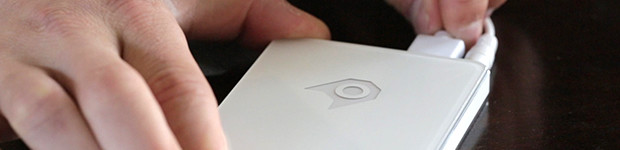
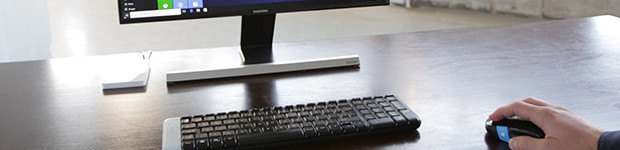
Step 3: Start working or playing.
Configuration
Please make sure that you’ve connected the Ockel device as described above. Press the power on button to start up your Ockel for the first time.
Please note: Any Ockel device needs about 10 minutes during the first boot-up to configure Windows 10. Please do not turn off the device during this configuration as this might cause errors!
The Windows 10 configuration will begin shortly after the Sirius B has started up. Please fill in your details and connect to a network in order to continue.
Windows Update
Once set-up, make sure you download all the available updates for your Ockel device the Windows Update section of Windows.
Warranty
Every Ockel comes with a two year standard warranty plan.
Download the Ockel warranty information card here.
Manual
Every Ockel comes with a manual in the box.
Download the Sirius B manual here.
Manual
Every Ockel comes with a manual in the box.
Download the Sirius B Black Cherry manual here.
Drivers
Chipset Drivers
1. Download the Intel Driver Update Utility here.
2. Follow the instructions on your screen to update and install the chipset drivers.
Or use the Windows Device Manager to update the drivers.
Manually updating the drivers is also a possibility. Download the full Black Cherry driver set here.
String ID Error
Please note: If you’re experiencing the ‘String ID’ error. Please select the tab ‘Install Drivers using Device Manager’ on this page for instructions on how to update your drivers manually.
Wi-Fi Driver
1. Download the Wifi Driver Package here.
2. Open the .EXE file.
3. Follow the installation steps to solve the issue.
4. Reboot your device to finalize the installation.
Bluetooth Driver
1. Download the Bluetooth Driver Package here.
2. Open the .EXE file.
3. Follow the installation steps to solve the issue.
4. Reboot your device to finalise the installation.
Drivers
When you’ve ordered a Ockel PC without an OS or when you’ve re-installed Windows you’ll need the Sirius B Driver Set.
- Download the full Driver Package here.
- Open the ‘primary installer’ folder.
- Double click on the ‘setup.exe’ file.
- Follow the instructions on your screen to finalise the installation.
String ID Error
Please note: If you’re experiencing the ‘String ID’ error. Please select the tab ‘Install Drivers using Device Manager’ on this page for instructions on how to update your drivers manually.
Unexpected Error message
The ”Unexpected error” message may pop-up on the first start up. This error is caused due to the fact that the Ockel was turned off during the configuration process. We’ve released a short manual to solve this error.
Please follow the steps below:
Bluetooth does not work
Windows Update
Please make sure that you’ve installed all Windows updates. To download Windows 10 updates, please visit the Windows Update section on your Ockel PC.
If the Bluetooth connection is not working after you’ve installed the Windows updates, please follow the next steps:
Solution Guide
- Download the Bluetooth Driver Package here.
- Open the .EXE file.
- Follow the installation steps to solve the issue.
- Reboot your device to finalise the installation.
Bluetooth does not work
Windows Update
Please make sure that you’ve installed all Windows updates. To download Windows 10 updates, please visit the Windows Update section on your Ockel PC.
If the Bluetooth connection is not working after you’ve installed the Windows updates, please follow the next steps:
Solution Guide
- Download the Bluetooth Driver Package here.
- Open the .EXE file.
- Follow the installation steps to solve the issue.
- Reboot your device to finalise the installation.
WiFi does not work
Windows Update
Please make sure that you’ve installed all Windows updates. To download Windows 10 updates, please visit the Windows Update section on your Ockel.
If the Wifi connection is not working after you’ve installed the Windows updates, please follow the next steps:
Solution Guide
- Download the Wifi Driver Package here.
- Open the .EXE file.
- Follow the installation steps to solve the issue.
- Reboot your device to finalise the installation.
Ubuntu Wifi drivers
Please select the ”Ubuntu installation” tab to download the Ubuntu Wifi Driver Package
WiFi does not work
Windows Update
Please make sure that you’ve installed all Windows updates. To download Windows 10 updates, please visit the Windows Update section on your Ockel.
If the Wifi connection is not working after you’ve installed the Windows updates, please follow the next steps:
Solution Guide
- Download the Wifi Driver Package here.
- Open the .EXE file.
- Follow the installation steps to solve the issue.
- Reboot your device to finalize the installation.
Ubuntu Wifi drivers
We do not offer Ubuntu Wifi drivers for the Ockel Sirius B Black Cherry.
Please follow this thread for information and download instructions from the Ubuntu community.
Powerloss
Please make sure that you’ve installed all Windows updates. To download Windows 10 updates, please visit the Windows Update section on your Ockel.
Please also make sure that you use the original adapter, which was shipped with your device.
Windows reinstallation
There are several reasons why a reinstallation of Windows 10 is needed.
We’ve released a detailed manual how to reinstall Windows 10 on your Ockel device. Please download the Windows 10 reinstallation guide here.
Windows (anniversary) Update installation
The following installation guide helps you to install Windows updates on to your Ockel device.
Windows is frequently updating its operating systems with the latest security and compatibility fixes. We recommend everyone to install these updates when Windows releases them. Both the regular and the Anniversary updates can be found in the Windows Update section in your Windows Configuration center.
Download the Windows 10 Reinstallation Guide here.
Install drivers using Device Manager
If your driver was not detected or installed by Windows Update, you can try installing the driver manually if you have a compatible version. Windows 10 and previous versions of Windows such as Windows 7 share the same driver model, so it should work.
- Press Windows key + X.
- Click Device Manager.
- Once device manager is open, select the device, right click it and click Update Driver Software. This will launch the update driver software wizard, which presents two options:
- Search automatically for updated driver software – its possible Windows might have the driver software if you have not checked it yet, if its taking too long, then the next option is usually best.
- Browse my computer for driver software – if there is a compatible driver and you already have the driver files, then all you need to do is point to it and Windows automatically install it for you.
Here select to use an existing driver, browse to where the Ockel Sirius B (Black Cherry) driver package is located on your computer, whether that is a partition, network share, thumb-drive or install disc. Make sure the option to Include subfolders is checked. Click Next and wait while the wizard completes the installation.
No HDMI video output
Please use some force to press the Black Cherry HDMI-cable correctly in the HDMI connector.
There should be no or very limited space between the cable and the Black Cherry HDMI connection port.
Quick Start Guide
Warranty
Ockel Computers offers two-year limited warranties on Ockel products purchased from Ockel Computers Authorized Distributors. This warranty covers all hardware items included in the box. You can find the warranty plan here.
Drivers
Intel drivers are being updated quite regularly, therefore we suggest to use the Intel® Driver & Support Assistant (Intel® DSA) to automatically update your Intel drivers to the latest version.
All the other Windows® 10, 64-bit drivers for your Ockel Sirius A or Ockel Sirius A Pro are available in a single download. To make sure your device works correctly, download the drivers that correspond with the starting letters from your serial number, which you’ll find here:
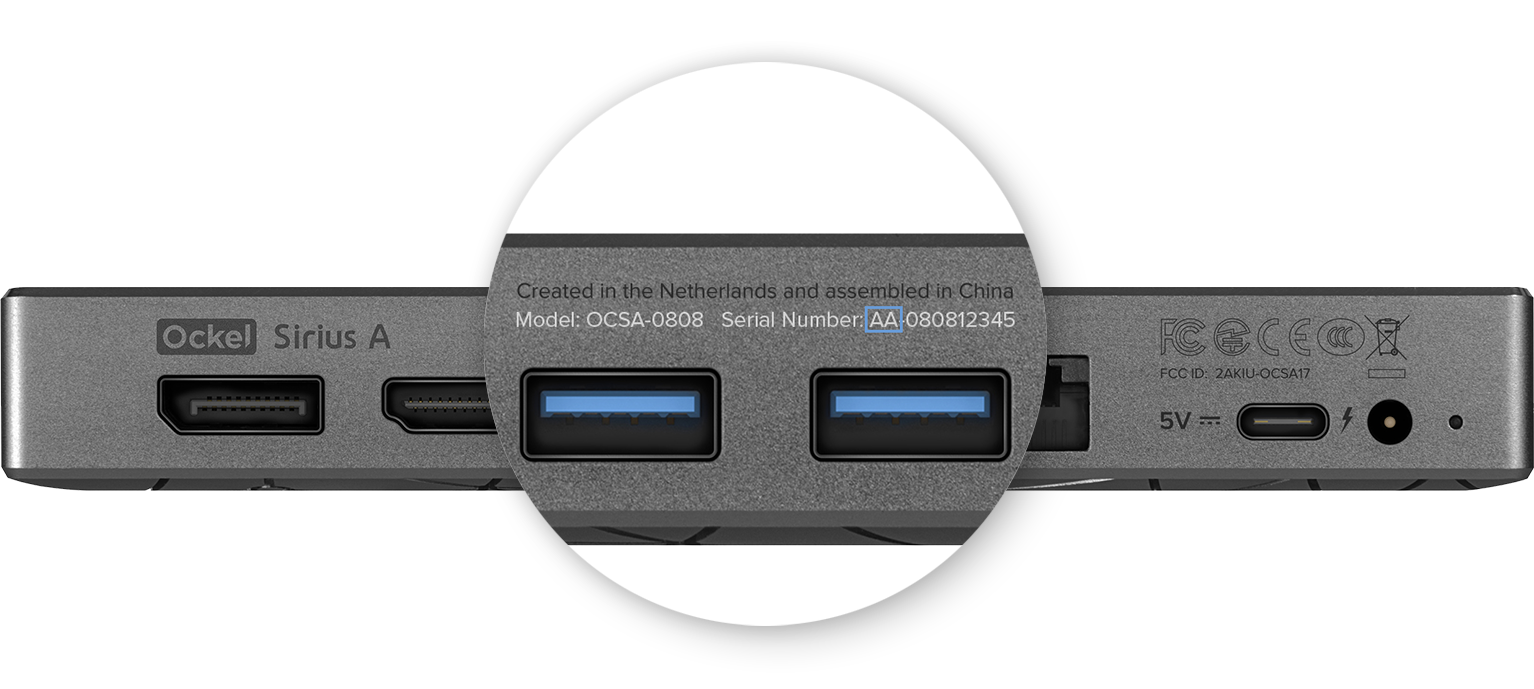
Download bundled drivers for your Ockel Sirius A (AA)
Download bundled drivers for your Ockel Sirius A (AB and AC)
Save & extract the files on to your Ockel Sirius A device. An installation manual is included in the .zip file.
Switch Mode Alpha v.01
The Switch Mode Alpha (v.01) can be found here: Download Alpha v.01
We will continue to develop this feature. All of your feedback is welcome, please e-mail us your feedback via support@ockelcomputers.com.
Please note: Before experimenting with the SwitchMode app, please ensure your external display is setup as extended display. Once you’ve done that, simply run the SwitchMode executable. If an external display is connected, all applications will be moved to the external display, the Sirius A display will turn white and function as a trackpad. Disconnecting the external display will make the SwitchMode run in the background.
Known issues: pointer is not bound to external display only; pointer flickers while panning; only single clicks are supported;”
To quit the application, please use the task manager.
WiFi / Bluetooth doesn’t work
Please make sure that you’ve installed all Windows updates. To download Windows 10 updates, please visit the Windows Update section on your Ockel.
In case your Ockel Sirius A is up-to-date, make sure to perform the following steps in order to resolve WiFi issues:
- Download the Intel Driver & Support Assistant (https://www.intel.com/content/www/us/en/support/detect.html)
- Follow the instructions during the installation of the assistant
- Once the set-up has been completed. Continue to search for drivers via the assistant tool
- Download and install all available updates immediately
- Reboot your Ockel device to resolve the WiFi issues
My fingerprint scanner doesn’t work
We are working on a solution for users who are experiencing a fingerprint scanner that cannot be configured.
BIOS Update Instructions
Find the latest BIOS version for the Ockel Sirius A & Ockel Sirius A Pro here.
Return Policy
At Ockel Computers we want to make sure you’re happy with your purchase. In case you want to return your Ockel device you can find our Return Policy here for more information.
We are here to help
Our online support center is the fastest way to find an answer to frequently asked questions.
If you can’t find the answer to your question, you can email us at support@ockelcomputers.com.
In order to help you as quickly as possible, please include the following details:
- Your full name
- Order date (if applicable)
- Order number (if applicable)
- Detailed description of your issue (if possible, please provide screenshots)
We try to answer all questions within 48 hours on business days between 09:00 – 17:00 (GMT+1)